Wednesday, March 14, 2012

Suddenly my application crashes without errors when using property binding

I introduced property binding in a previous blog post. Today, I introduce a problem when I write code of property binding.


Property binding is easy to mistake property names. If you mistake property name, you can't bind property correctly but also an application suddenly crashes without any errors.


So, please look at this code attentively. If you write such code, you can pass build action, but your application crashes suddenly without errors.

 public class ItemProperties : INotifyPropertyChanged  
 {  
   public event PropertyChangedEventHandler PropertyChanged;  
   public ItemProperties() { }  

   private string m_Text1;  
   public string Text1  
   {  
     get { return Text1; }  
     set  
     {  
       m_Text1 = value;  
       OnPropertyChanged("Text1");  
     }  
   }  

   protected void OnPropertyChanged(string name)  
   {  
     PropertyChangedEventHandler handler = this.PropertyChanged;  
     if (handler != null)  
       handler(this, new PropertyChangedEventArgs(name));  
   }  
 } 


The wrong code is here. If you write like this, your application suddenly shutdown.
get { return Text1; }  

You need to write like this.
get { return m_Text1; }  


I don't know why debugger can't catch error, but I noticed we need to pay attention when we use property binding.

Friday, March 9, 2012

Property Binding using INotifyPropertyChanged and ObservableCollection

I was struggling against property binding using INotifyPropertyChanged and ObservableCollection.
Today, I introduce how to bind from properties in a class to UI properties by using INotifyPropertyChanged and ObservableCollection. And I'll show you the problem I encountered in next blog post.


  • Sample code of property binding
I introduce a sample code binding from properties in ItemProperties class to TextBlock's properties in ListBox (One Way).


  • The xaml code is here.
 <ListBox Height="595" ItemsSource="{Binding}" HorizontalAlignment="Left" Margin="12,6,0,0" Name="listBox1" VerticalAlignment="Top" Width="438">  
   <ListBox.ItemTemplate>  
     <DataTemplate>  
       <StackPanel HorizontalAlignment="Stretch" Orientation="Horizontal">  
         <TextBlock x:Name="Name1" FontSize="35" Text="{Binding Text1}" Foreground="{Binding Color1}"/>  
         <TextBlock x:Name="Name2" FontSize="35" Text="{Binding Text2}" Foreground="{Binding Color2}"/>  
       </StackPanel>  
     </DataTemplate>  
   </ListBox.ItemTemplate>  
 </ListBox>  
- Point - 
You need to add ItemsSource="{Binding}" in ListBx to bind properties from code behind. You also should not add like ItemsSource="{Binding Collection}", just write "{Binding}".

When you use DataTemplate in ListBox, you can't write like this in code behind.

Name1.Foreground = new SolidColorBrush(Colors.LightGray);

So you need to bind from properties as a class to UI  properties. Almost all of UI element properties (ex. Foreground, Text, any more) are implemented as dependency property. You can bind from properties as a class to UI  properties using dependency property. You can't bind using usual property.


  • The code behind is here.
 public partial class MainPage : PhoneApplicationPage  
 {  
   public ObservableCollection<ItemProperties> ItemCollection { get; private set; }  
   // Constructor  
   public MainPage()  
   {  
     InitializeComponent();  
     GetList();  
   }  

   public void GetList()  
   {  
     ItemCollection = new ObservableCollection<ItemProperties>();  
     ItemCollection.Add(new ItemProperties  
     {  
       Text1 = "test01",  
       Text2 = "test01",  
       Color1 = new SolidColorBrush(Colors.LightGray),  
       Color2 = new SolidColorBrush(Colors.Brown)  
     });  

     ItemCollection.Add(new ItemProperties  
     {  
       Text1 = "test02",  
       Text2 = "test02",  
       Color1 = new SolidColorBrush(Colors.Cyan),  
       Color2 = new SolidColorBrush(Colors.Red)  
     });  

     ItemCollection.Add(new ItemProperties  
     {  
       Text1 = "test03",  
       Text2 = "test03",  
       Color1 = new SolidColorBrush(Colors.Orange),  
       Color2 = new SolidColorBrush(Colors.Purple)  
     });  

     DataContext = ItemCollection;  
   }  
 }  

 public class ItemProperties : INotifyPropertyChanged  
 {  
   public event PropertyChangedEventHandler PropertyChanged;  
   public ItemProperties() { }  

   private string m_Text1;  
   public string Text1  
   {  
     get { return m_Text1; }  
     set  
     {  
       m_Text1 = value;  
       OnPropertyChanged("Text1");  
     }  
   }  

   private string m_Text2;  
   public string Text2  
   {  
     get { return m_Text2; }  
     set  
     {  
       m_Text2 = value;  
       OnPropertyChanged("Text2");  
     }  
   }  

   private Brush m_Color1;  
   public Brush Color1  
   {  
     get { return m_Color1; }  
     set  
     {  
       m_Color1 = value;  
       OnPropertyChanged("Color1");  
     }  
   }  

   private Brush m_Color2;  
   public Brush Color2  
   {  
     get { return m_Color2; }  
     set  
     {  
       m_Color2 = value;  
       OnPropertyChanged("Color2");  
     }  
   }  

   protected void OnPropertyChanged(string name)  
   {  
     PropertyChangedEventHandler handler = this.PropertyChanged;  
     if (handler != null)  
       handler(this, new PropertyChangedEventArgs(name));  
   }  
 } 

  • Result


Monday, January 16, 2012

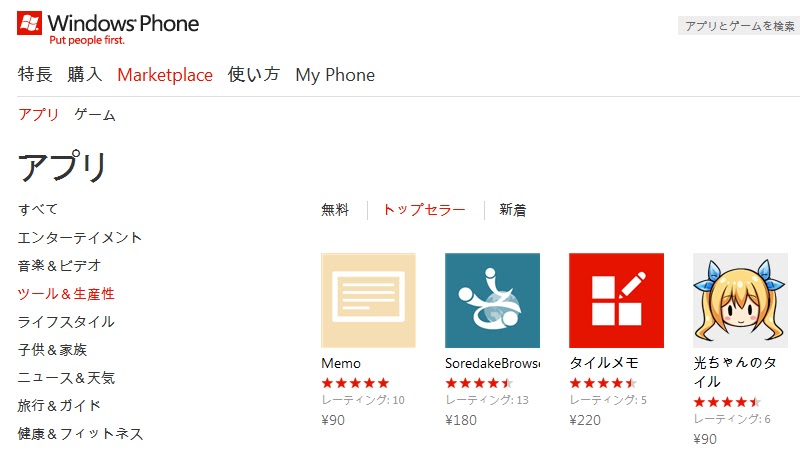
My memo app became No.1 in Japan region ranking !


http://www.windowsphone.com/ja-JP/categories/toolsandproductivity?list=top&wa=wsignin1.0


My memo app became No.1 in "tools + productivity" in Japan region ranking !
I really want to say thanks so much and please download trial version if you don't use it yet.
The memo app is simple and you can note a short memo. (ex, buying list)

  • new feature in ver.1.3


You can clip memo to tile from ver1.3. This is most fantastic feature in previous updates.
Please see the movie and check the feature.


  • If you can't download memo app,
Please visit this page on Windows Phone, and click "download trial version".

Or you can search memo app, "memos", "note", "notes", like this.

How to solve the problem that you can't display a imge file from IsolatedStorage to web browser

If you have a experience that you try to display a image from IsolatedStorage to web browser as img tag, you notice you can't make it.

For instance, a image file (test.jpg) doesn't display in like html source.
 string htmlSource = @"<?xml version='1.0' encoding='utf-8'?>  
             <html>  
             <head>  
               <meta http-equiv='Content-Type' content='text/html;charset=UTF-8' />  
             </head>  
             <body>  
               <img src='isostore:/Shared/ShellContent/test.jpg'>  
             </body>  
             </html>  
               ";  
 this.webBrowser1.NavigateToString(htmlSource);  


So, if you want to display a image file from IsolatedStorage, you need to generate Base64 String object from the image file and use Javascript to display a image file in html source code.


The sample code is like this.

  • First, generate Base64 String object from Image object.
 public string ImageToBase64(Image image, System.Drawing.Imaging.ImageFormat format)  
 {  
  using (MemoryStream ms = new MemoryStream())  
  {  
   // Convert Image to byte[]  
   image.Save(ms, format);  
   byte[] imageBytes = ms.ToArray();  
   // Convert byte[] to Base64 String  
   string base64String = Convert.ToBase64String(imageBytes);  
   return base64String;  
  }  
 }  

  • Second, display a image using Javascript.
string base64String = ImageToBase64(image, format);  
 string htmlSource = @"<html>  
             <head>  
             </head>  
             <body>  
               <img id='icon_here'>  
               <script>  
                 var data = 'data:image/gif;base64," + base64String + @"';  
                 var icon_elem = document.getElementById('icon_here');  
                 icon_elem.src = data;  
               </script>  
             </body>  
             </html>";  
 this.webBrowser1.NavigateToString(htmlSource);  


You can display a image like this.


If you have a great idea about the problem, please reply comment.

  • Edit. 2011/01/16
I got a comment of great idea about the problem. You don't need to use Javascript. Simply, add BASE64 string to src attribute.
 string source = @"<html>  
           <head>  
           </head>  
           <body>  
             <img src='data:image/gif;base64," + base64String + @"'>  
           </body>  
          </html>";  
 this.webBrowser1.NavigateToString(source);  

Monday, January 9, 2012

Character Corruption of Japanese Language on Web Browser

You can use build-in web browser in your application on Windows Phone. Using web browser in your app, you can display like rich text page which has images, a few fonts, javascripts or etc.

The sample code is here. 

- xaml
 <Grid x:Name="ContentPanel" Grid.Row="1" Margin="12,0,12,0">  
   <phone:WebBrowser HorizontalAlignment="Left" Name="webBrowser1" VerticalAlignment="Top" Height="607" Width="456" />  
 </Grid>  

- code behind
 public MainPage()  
 {  
   InitializeComponent();  
   this.webBrowser1.NavigateToString(@"  
           <?xml version='1.0' encoding='utf-8'?>  
           <html>  
             <head>  
             <meta http-equiv='Content-Type' content='text/html;charset=UTF-8' />  
             </head>  
             <body>  
             テストページです。  
             </body>  
           </html>  
           ");  
 }  


In above sample, Japanese character is used in body in html source. If you run the program, the Japanese character should be character corruption like here.


To solve the problem, you need to convert ASCII format to display Japanese correctly.
The sample method "ConvertExtendedASCII" is like this.
 private static string ConvertExtendedASCII(string HTML)  
 {  
   string retVal = "";  
   char[] s = HTML.ToCharArray();  
   foreach (char c in s)  
   {  
     if (Convert.ToInt32(c) > 127)  
       retVal += "&#" + Convert.ToInt32(c) + ";";  
     else  
       retVal += c;  
   }  
   return retVal;  
 }  

 public MainPage()  
 {  
   InitializeComponent();  
   string HTML = @"  
           <?xml version='1.0' encoding='utf-8'?>  
           <html>  
             <head>  
             <meta http-equiv='Content-Type' content='text/html;charset=UTF-8' />  
             </head>  
             <body>  
             テストページです。  
             </body>  
           </html>  
           ";  
   this.webBrowser1.NavigateToString(ConvertExtendedASCII(HTML));  
 }  

The result is here.


The ConvertExtendedASCII method takes so much time if you convert big size html. So, you need to run the method in different thread from UI thread.